

Create a project from a blueprint with AI
Already have the blueprint? Then there's no need to key in quantities by hand. Matterial reads your sheet with AI, counts the elements (footings, columns, beams…), and builds the takeoff with every formula in plain sight. You just review what it flagged, tweak whatever needs it, and save it as the project's estimate. Here's the step-by-step, exactly as it looks on screen.
- Works with PDF, image (JPG/PNG), and CAD (DWG/DXF). CAD files are measured straight from the exact geometry, so they're more precise and usually take under a minute.
- The AI never makes up numbers: every quantity comes with its formula and its source, and anything it couldn't read is flagged as "Review" or "Not legible" for you to fill in.
- Each analysis is paid for with AI credits from the monthly pool your company shares (Free 200 … Enterprise 25,000). Each blueprint analysis costs 120 credits.
- You have the final say: you validate item by item with a checkmark, and only what you include with a quantity greater than zero makes it into the project estimate.
- Before saving, you can download an Excel file with the breakdown by line item (item, formula, quantity, and unit).
- 1
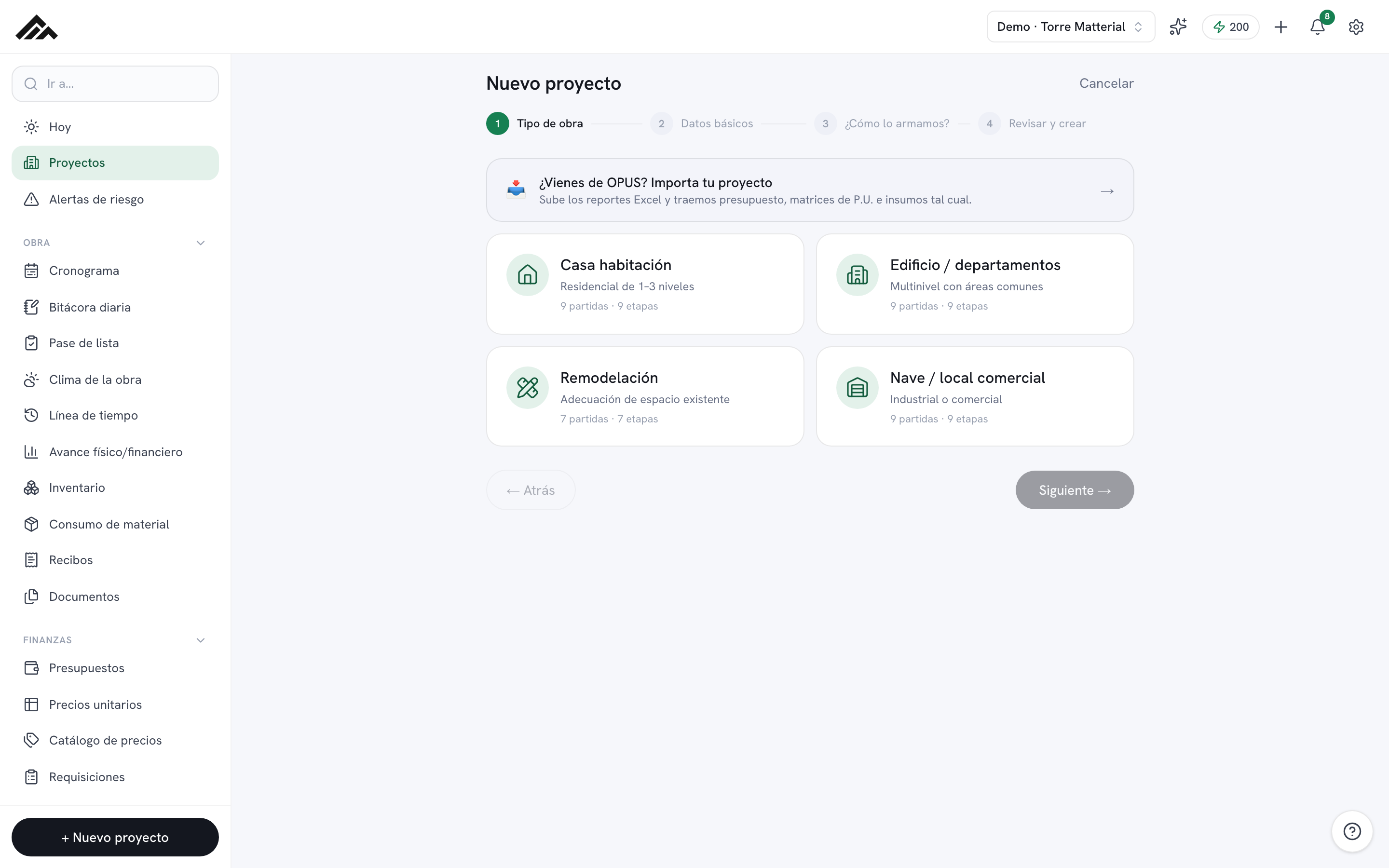
Start from New project and pick "From a blueprint (AI)"
In /proyectos, tap New project. The wizard asks for the type of project and the basics (name, location, area…). On the "How should we build it?" step, choose the "From a blueprint (AI)" card —it carries the "Uses AI" label— and hit "Continue with the blueprint →". That takes you into the blueprint analysis flow.
- 2
Upload your blueprint (Step 1 of 3)
On "Upload your blueprint," type the project name and drag in or pick the file. It accepts JPG, PNG, PDF, and DWG/DXF. If you upload a CAD file, you'll see the note "exact geometry (CAD)": that format is measured straight from the drawing. When it's ready, hit "Analyze blueprint →".
- 3
Let the AI read the sheet (Step 2 of 3)
On "AI analysis," Matterial splits the sheet into views (floor plans, sections, details) and a specialized agent reads each one. You'll see the progress step by step, the elapsed time, and the views it's working through. An image or PDF usually takes 1 to 3 minutes; a CAD file, under a minute. Don't close the window. When it's done, "Analysis complete" appears with the counts: Quantified, Review, Detected, and Not legible.
- 4
Validate the takeoff (Step 3 of 3)
On "Validate the takeoff," you'll see a table grouped by line item. Each item shows its formula/source, the quantity, and its status. Go over anything marked "Review" or "Not legible," fix quantities by typing right in the field, and use the checkmark to include or leave out each item. At the bottom, a running count shows how many items are headed to the estimate.
- 5
Save it to the project (and download the Excel if you want)
If it's handy, hit "Download Excel" to take the line-item breakdown with you. Once you're happy, hit "Save to the project": the included items load into the project estimate and you land back in /proyectos, ready to move on to pricing and the schedule.
Frequently asked questions
What blueprint formats can I upload?
JPG, PNG, PDF, and also CAD in DWG or DXF. With images and PDFs, the vision AI does the work; with DWG/DXF, everything is measured straight from the drawing's exact geometry, which gives more precise and usually faster results.
How many credits does it use, and where do they come from?
Each blueprint analysis costs 120 AI credits, drawn from the monthly pool your company shares (from 200 on Free up to 25,000 on Enterprise). If you run out of credits, the analysis pauses and you can buy a pack or upgrade your plan from /creditos.
Does the AI make up the quantities?
No. Every quantity comes with its formula and its source on the blueprint, and anything it couldn't read with confidence is flagged as "Review" or "Not legible." Nothing reaches the estimate until you review it, leave it included, and confirm with "Save to the project."