

Build a granular budget
Your budget is the backbone of the whole job. In Matterial you build it by sections (like Foundation or Masonry) and break each one into items with their unit, quantity, and unit price. The platform adds everything up on its own and, as you buy, shows how much you've spent and how much you still have available. It's a manual module: it doesn't burn AI credits, and every change saves the instant you make it.
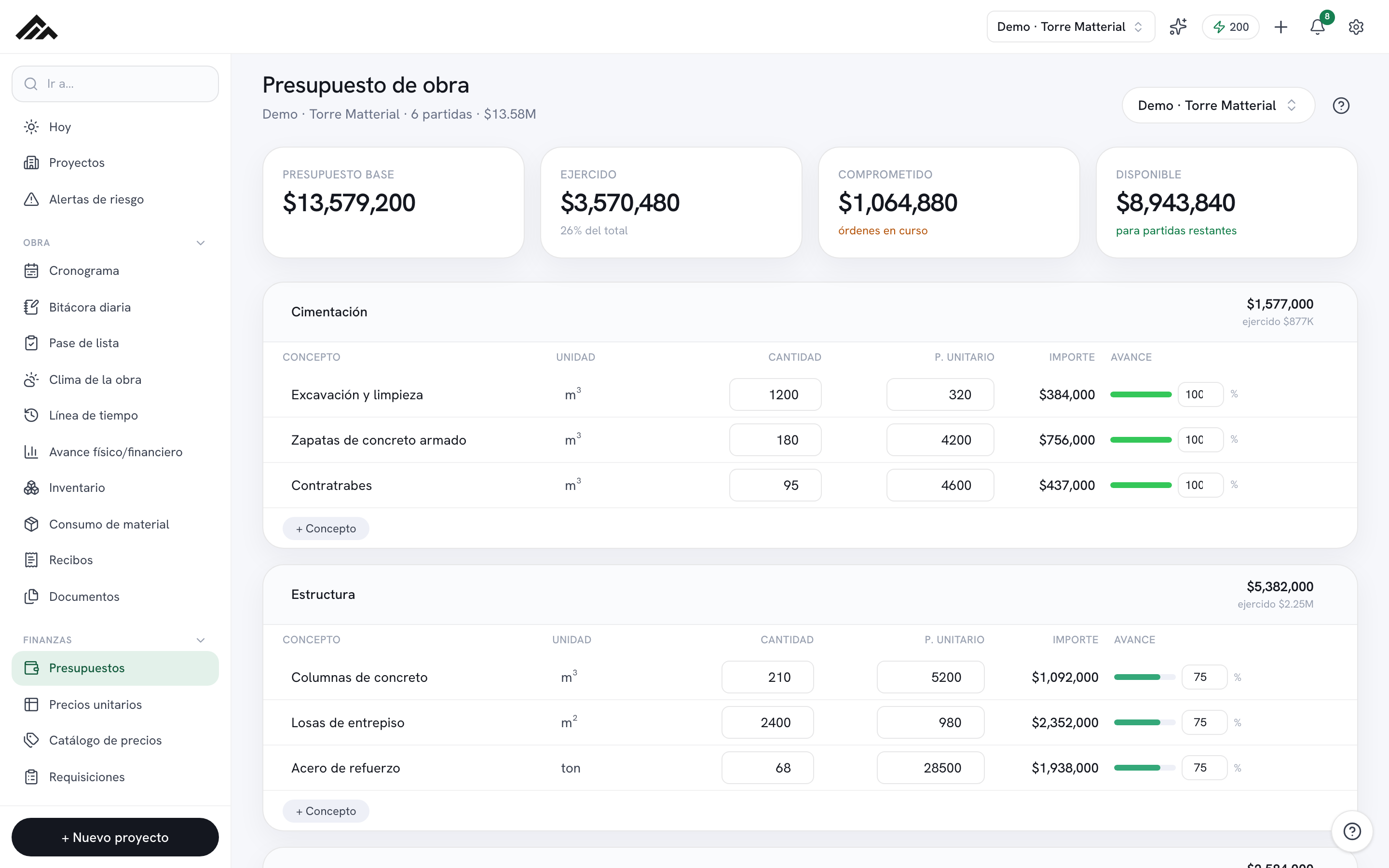
- You build the budget by sections, and each section breaks down into items: item · unit · quantity · unit price.
- The amount for each item and the total for each section are calculated for you—you never key in a sum by hand.
- Up top you've got four live numbers: Base budget, Spent, Committed, and Available.
- Spent and Committed come from the purchase orders linked to each section—you don't type them in here.
- It's a 100% manual module: it uses no AI credits, and everything saves as you go.
- 1
Pick the job
In the top right, use the project picker to open the budget for the right job. Each job has its own budget, so make sure you're on the one you want before you start.
- 2
Add your first section
If the job is blank, tap “+ Add first section” and type its name in the field (e.g. Foundation). To add more, use “+ Add section” at the bottom of the list. The × next to the total deletes the section.
- 3
Break the section into items
Inside the section, tap “+ Add item”, type the item (e.g. Concrete f'c=250) and press Enter: it is created with that name. Then fill in Unit (m³, m², kg…), Quantity, and Unit price. The Amount is figured for you: quantity × unit price.
- 4
Log physical progress
In each item's Progress column, enter the % completed (0 to 100) and the bar fills in. The section's progress is weighted by amount automatically and feeds the Progress module.
- 5
Read the four metrics up top
You'll see Base budget (your total), Spent (from delivered purchases), Committed (orders in progress), and Available. If a section's spend goes over its total, the figure turns red to warn you.
- 6
Link your purchases
Spent and Committed fill in on their own when you link a purchase order to the section from Purchases. You don't record costs here: once the purchase is delivered, the number shows up in the budget.
Frequently asked questions
Do I have to enter the totals?
No. You only enter the quantity and unit price for each item; Matterial calculates the amount, the section total, and the base budget. It also weights the section's progress by amount.
Where do “Spent” and “Committed” come from?
From the purchase orders linked to each section: what's delivered adds to Spent, and what's in progress adds to Committed. You don't type it into the budget; it updates from the Purchases module.
Does building the budget use AI credits?
No. The budget is 100% manual: it uses no credits, and every change saves on its own. Your company's monthly credit pool is only spent on AI features, like reading receipts.