

Clients & collections (CRM)
In Matterial, Clients is your collections CRM: it's where you keep track of who you sell to, how much they hired you for, and how much they've paid. In just a couple of screens you know exactly who owes you and how much—no scattered spreadsheets and no surprises at the end of the month.
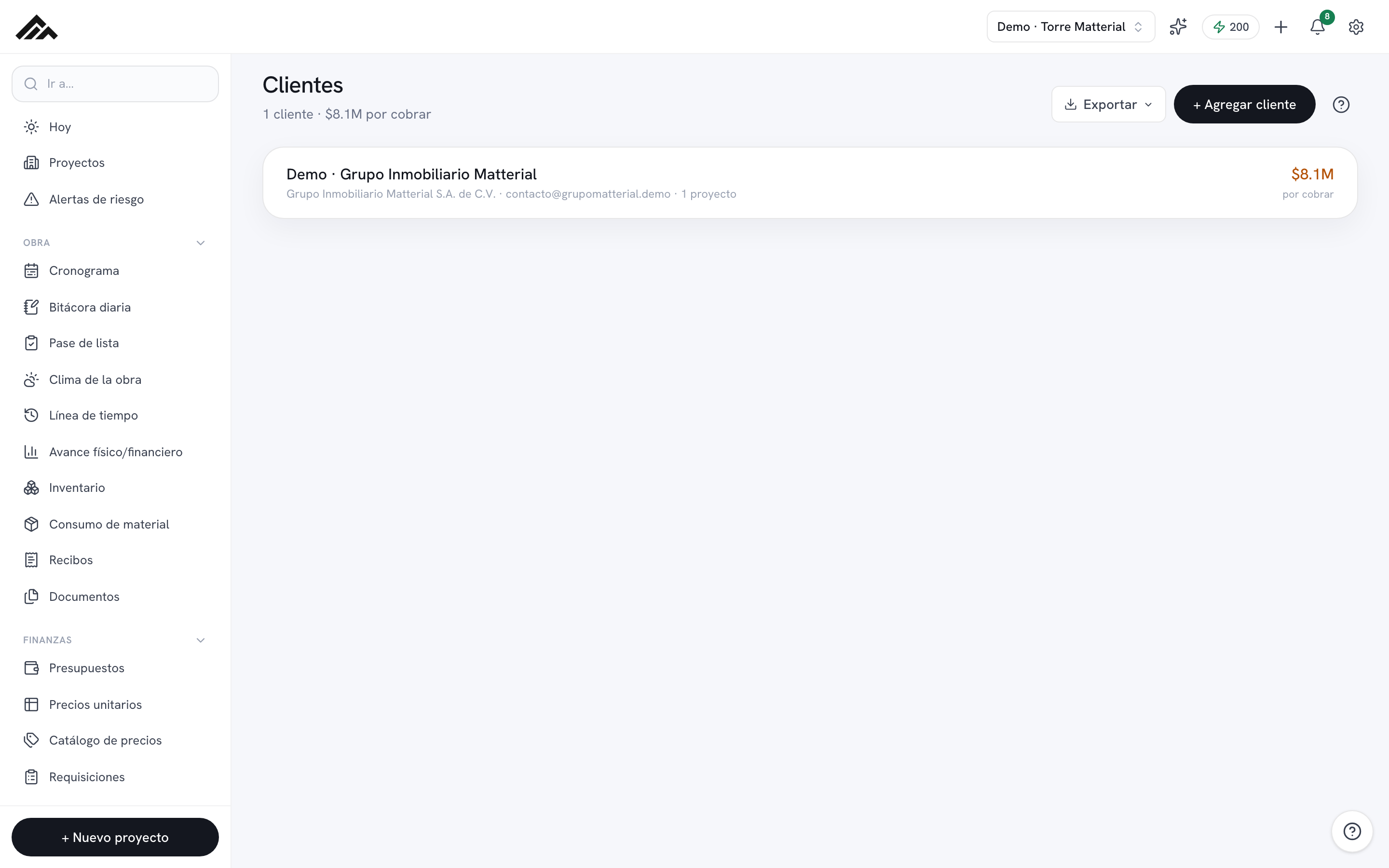
- Clients lives at /clientes: the header totals how much you're owed overall, and each row shows its outstanding balance, 'Paid up,' or 'no contract.'
- You assign the client from the project (Client section); the contracted amount is entered per project inside the client's profile.
- Every payment is logged with amount, date, project, payment method, and a photo of the receipt, and it lowers the balance instantly.
- The profile shows Contracted, Paid, Outstanding (with % collected), and the proposals you've sent, linked by the client's email.
- The whole module works without AI: managing your collections doesn't use up your company's Matterial Credits.
- 1
Add your client
Go to Clients and tap '+ Add client.' A side panel opens where the name is the only required field; if you like, you can add company, tax ID, contact, phone, email, and notes. Save, and the client is ready to be assigned to projects.
- 2
Assign the client to a project
Collections are built around projects. Open the project and, in its 'Client' section, select the client. A single client can have several projects, and they all add up in their profile.
- 3
Enter what was contracted
Open the client's profile from the list. In the 'Projects' block, type the Contracted amount for each project in the field on the right; it saves automatically. That figure is the basis for calculating what you're owed.
- 4
Log every payment with its receipt
In the profile, tap 'Record payment': enter the amount (MXN), the date, the project, the payment method, and a description, then attach a photo of the receipt (optional). When you save, the payment lowers your outstanding balance and a payment notification is generated.
- 5
Keep an eye on what's still owed
At the top of the profile you'll see Contracted, Paid, Outstanding (with % collected), and Proposals, plus the Collections chart. In the Clients list, each one shows its balance in an alert color, 'Paid up,' or 'no contract,' and the header totals the outstanding amount across your whole portfolio.
- 6
Export the portfolio for your accountant
In the Clients list, use the export menu to download the portfolio with contracted, paid, and outstanding amounts per client. It's the perfect view for reconciling with your accounting.
Frequently asked questions
Do I need AI credits to manage collections?
No. The Clients & collections module works entirely without AI, so it doesn't draw from your company's monthly Matterial Credits. Credits are only used for the AI-powered features in other modules.
Why don't I see my client's proposals?
Proposals are linked by the client's email. Make sure the email in their profile matches the one you used to send the proposal; once you fix it, they'll be matched again automatically.
Where do I assign the client to a project?
Not from the Clients list, but from the project itself: open it and select the client in its 'Client' section. From then on, the contracted amounts and payments show up in the client's profile.