

Buy credits and change your plan
In Matterial, AI is paid with Matterial Credits. Your balance has two parts: your plan's monthly allowance (from 200 on Free to 25,000 on Enterprise), which renews every cycle without rolling over, and the credits you buy, which never expire. From the Credits screen you see what you have left, buy more, and change plans seeing the exact amount before paying. The screen shows up in your language (Spanish, English, or Portuguese) based on your user preference.
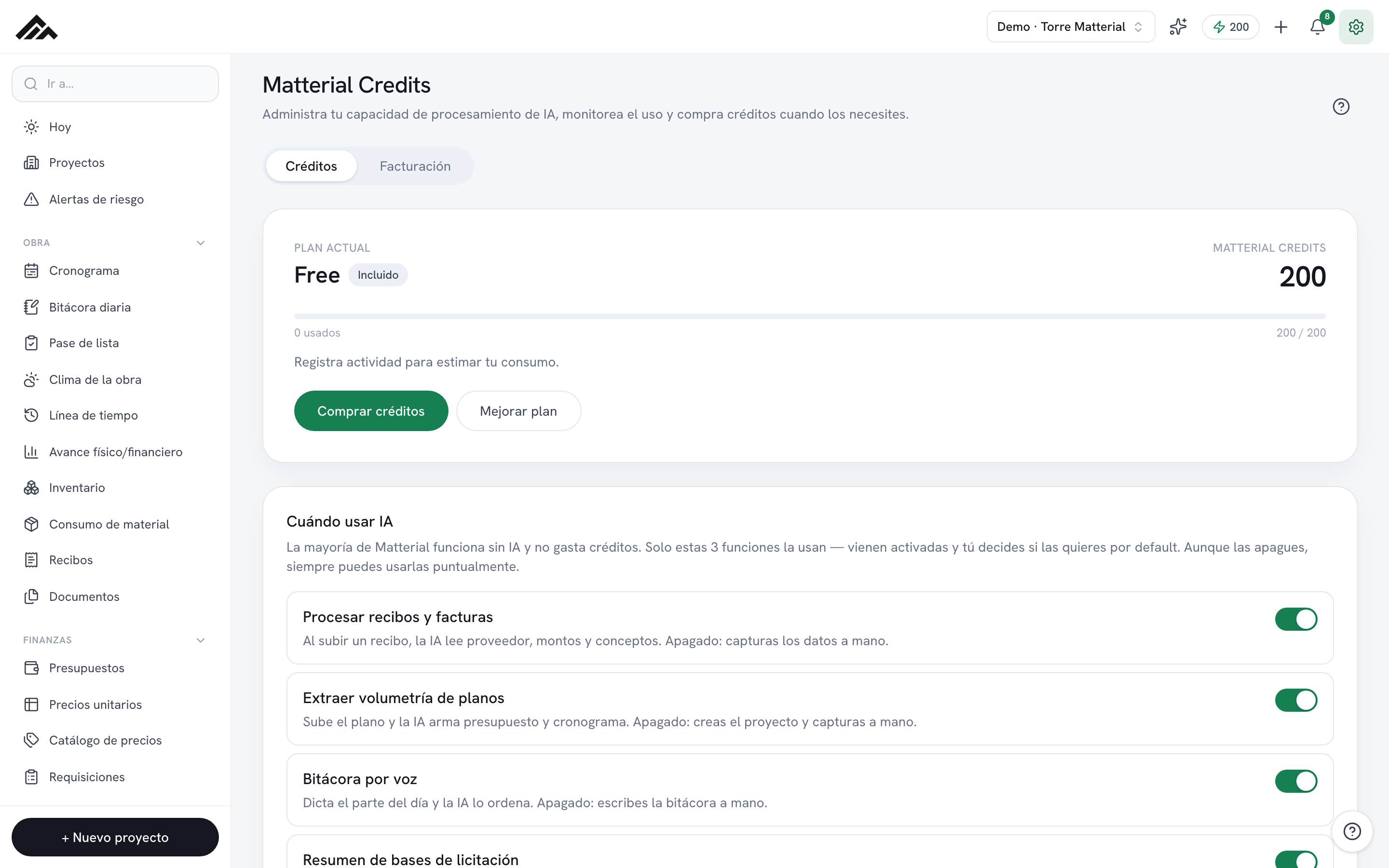
- Everything lives in Credits (/creditos), with two tabs: Credits (balance, costs, and packs) and Billing (plans and payment method).
- Your balance is the plan allowance (renews every cycle, without rolling over) plus your purchased credits (never expire). The plan allowance is used first.
- Before charging a plan change, Matterial shows you the exact amount Stripe calculated, the credits you will have, and your next invoice. Nothing is charged until you confirm.
- No payment lowers your balance: subscribing, renewing, or upgrading never takes credits away, and purchased credits are never lost.
- If you cancel in the Stripe portal, your plan stays active until the end of the paid period and you can reactivate it; when it ends you move to Free and keep your purchased credits.
- 1
Open the Credits screen
Go to Credits from the menu. At the top you'll see the Matterial Credits title and two tabs: Credits and Billing. You start on Credits.
- 2
Check your balance before buying
The top card shows your plan, your available credits and, below, the plan allowance (how much is left and when it renews) and your purchased credits. Further down, 'What each AI action costs' lists the cost of every feature, and an estimate tells you how many days your balance lasts at your pace over the last 30 days.
- 3
Buy a credit pack
Tap 'Buy credits'; it takes you to 'Need more credits?'. Each pack shows its size, its price in USD, and the price per credit. Tap 'Buy' and pay on Stripe's secure page. When you come back, Matterial waits for Stripe to confirm THAT payment: with a card you'll see 'Payment received' with the balance already added; with OXXO or bank transfer (SPEI) the notice tells you the payment stays pending until the bank confirms it (usually 1 to 3 business days). There is no need to pay again.
- 4
Choose a plan and review the amount
Tap 'See plans' or open the Billing tab. In 'Compare plans' switch between Monthly and Yearly (yearly saves 20%) and tap 'Choose'. If you're on Free, you go to Stripe checkout. If you already have a plan, a confirmation opens with what Stripe will charge today (the prorated difference), your next invoice, and how the plan allowance ends up. The charge only happens when you tap 'Confirm'; you get an email with the summary. On Enterprise the button is 'Contact us'.
- 5
Upgrade or downgrade
You can upgrade at any time, and the new plan's extra credits are added to your allowance. Downgrading credits the unused time to your Stripe balance and sets this cycle's allowance to the new plan's; to prevent abuse, you can only downgrade if you haven't changed plans in the last 30 days, and your usage (users and active projects) must fit the target plan. Your purchased credits never change.
- 6
Manage card, invoices, cancellation, and reactivation
In Billing, tap 'Manage payment and invoices' to open Stripe's secure portal: update your card, download invoices, or cancel. If you cancel, Matterial shows 'Canceled' with the date it ends; until then everything stays the same and you can tap 'Reactivate subscription'. When the period ends you move to Free (200 credits a month), keep your purchased credits, and we tell you what to adjust if you have more projects or users than Free includes.
Frequently asked questions
What happens if I run out of credits?
The AI action stops, but the rest of Matterial keeps working (most modules don't use AI). To continue, buy a pack or upgrade your plan from the Credits screen and you pick up right away.
Are credits per person or per company?
They belong to the whole company. Everyone uses the same balance; in the 'AI usage log' you can see who spent what, on which feature, and on which project.
Do purchased credits get lost when the plan renews or changes?
No. Purchased credits never expire and no plan movement touches them: not the renewal, not upgrading or downgrading, not canceling. What renews every cycle, without rolling over, is the plan allowance.
Can I pay for a plan again after canceling?
Yes. As long as the paid period hasn't ended, tap 'Reactivate subscription'. If it already ended, choose a plan in Billing: subscribing again never lowers your balance.