

Build the schedule with dependencies
The Schedule module lets you build your project plan task by task and chain the tasks together so Matterial works out the critical path, the projected finish date, and which tasks are blocked all on its own. Instead of a static Gantt chart, every dependency tells the system what order things run in, so the moment something shifts you see the impact right away. You draw the whole thing from the Schedule view at /cronograma, and it never spends AI credits: the math runs on your own device.
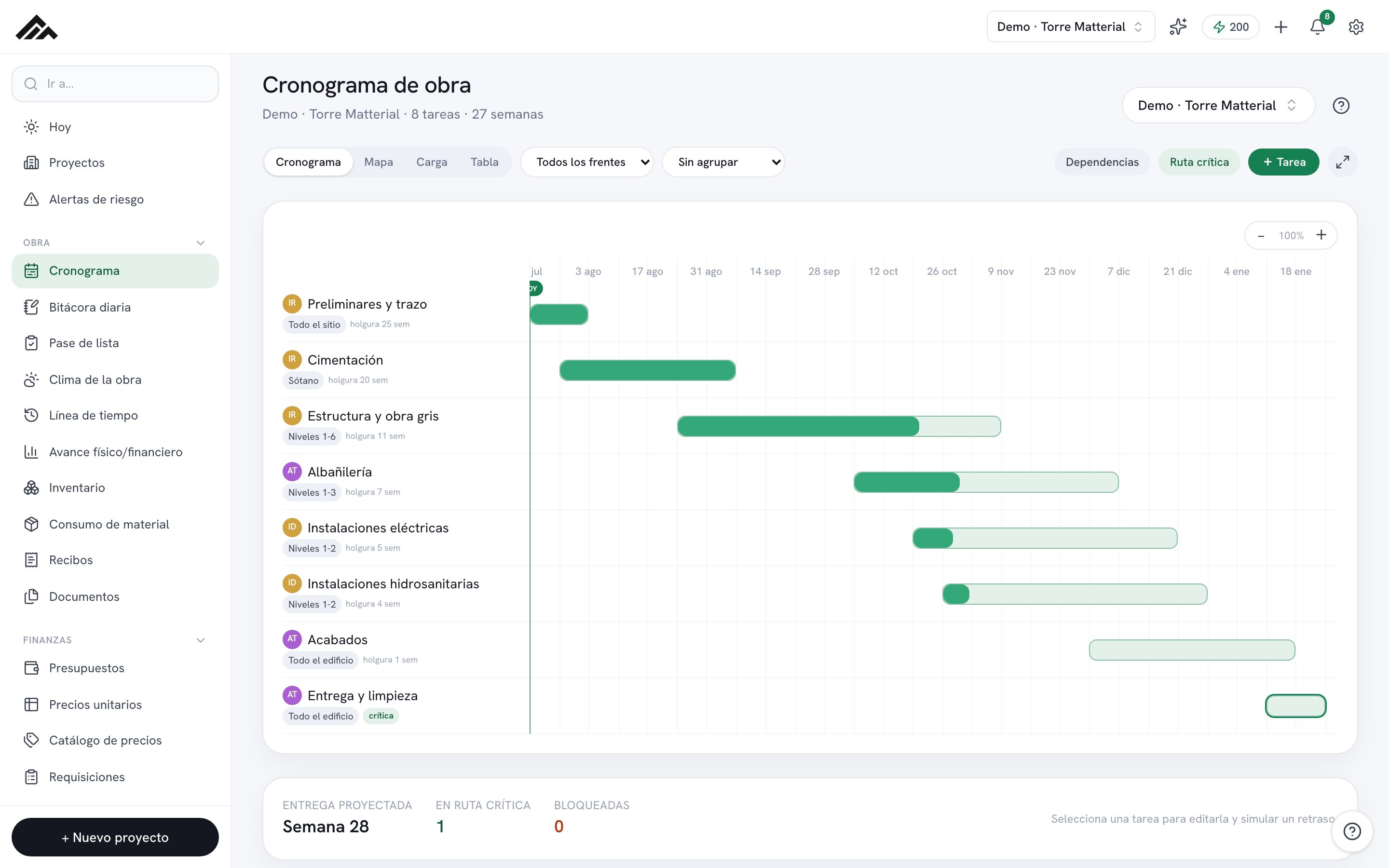
- Already have the budget (entered or imported from OPUS)? With an empty schedule, “Generate from the budget line items” builds a draft: one task per line item, linked to it, spread over the project timeframe by its amount.
- Every task carries dates, a work front (zone), crew, company, and owner; it's the real dates that draw the Gantt.
- You link tasks with "Depends on" and pick how they relate: FS (when it finishes), SS (when it starts), or FF (they finish together), plus any lag days.
- Matterial works out the critical path, the projected finish, and the blocked tasks the moment you connect the dependencies.
- If a link would create a loop, the system blocks it and flags it so you can rethink the sequence.
- You can simulate a delay and see how many tasks and weeks it pushes before you commit; nothing changes until you hit "Apply."
- Besides the Gantt you have a Calendar view (month and agenda): drag a task to another day to reschedule it, respecting the dependencies.
- The "Planned vs actual" view compares the project against the frozen BASELINE, not against today's plan: rescheduling moves the schedule, not the promise.
- Delay is stated in days, not percentage points: the baseline is searched for the day it said today's progress would be reached.
- 1
Pick the project and add your tasks
Up in the top right, choose the project. If there's nothing there yet, tap "+ Add first task"; after that, use the "+ Task" button in the toolbar to keep adding each line item. Creating a task opens its side panel with the name field ready for you to type.
- 2
Fill in each task's details
In the side panel, enter the name, the start and end dates, the work front (say, "Tower A"), the crew, the company or subcontractor, the owner, the % complete, and the status. The work front helps you separate zones that run in parallel, and the crew feeds the Load view.
- 3
Link the dependencies
In the panel's "Depends on" block, open the "+ depends on…" picker and choose the predecessor task. You can also do it from the Table view, or in the Gantt by dragging from a bar's connector over to another task to link them.
- 4
Set the link type and the lag
Next to each predecessor, pick the type: FS (starts when the previous one finishes), SS (starts when it starts), or FF (they finish together), and add lag days (+ d) if you need a buffer between the two. If a link would form a loop, Matterial blocks it with a "Can't link" notice.
- 5
Check the critical path and the alerts
Turn on the "Critical path" button to highlight it on the Gantt or the Map. The summary card shows the projected finish, how many tasks are on the critical path, and how many are blocked, plus chips for the late tasks or sequence conflicts.
- 6
Simulate a delay before you commit
With a task open, use "Simulate delay" and adjust the weeks with the − and + buttons. You'll see how many tasks it moves and how far the finish date slips, along with a suggested action. The schedule doesn't change until you hit "Apply."
Frequently asked questions
Why does my project show "on time" when I know we are late?
Because you have not frozen the schedule yet. Without a baseline, all there is are the schedule dates, and those get edited: every time you reschedule a task, the "planned" date becomes the new one and the comparison always gives zero. Go to "Planned vs actual" and press "Freeze the schedule": today's dates are saved as the promise and from then on the delay is real. Until you do, the screen says so instead of showing you a zero.
If I freeze the schedule, can I no longer move the dates?
You still can, and that is the point. The schedule keeps being edited as much as needed: what does not move is the baseline. They are two different things on purpose — the forecast of when something will happen changes every week; what you promised your client does not.
Who can freeze the schedule?
The company owner, an admin, or someone whose role has the «Approve» permission (Settings → Team → Roles and permissions). Freezing sets the promise the project is measured against, so it is an approval: everyone else sees «Planned vs actual» but not the button, and the database rejects the attempt even if it comes in through another path.
Where do the "actual" dates of each task come from?
They are stamped automatically. The first time a task reports progress above zero its actual start date is saved, and the day it reaches 100% its finish date is saved. It does not matter where that progress comes in —the app, the Excel importer, the copilot or offline capture—: the stamp lives in the database, so no path skips it.
What do FS, SS, and FF mean in dependencies?
They're the relationship between a task and its predecessor: FS (finish→start) starts when the previous one finishes, SS (start→start) starts when the other one starts, and FF (finish→finish) makes them finish together. You can add lag days to any of them to leave a buffer.
Do I need exact dates, or can I work in weeks?
The Gantt uses real dates once you enter them, but you can start with just weeks and tighten up the dates later. The critical path and the dependencies calculate either way; as you add dates, the schedule gets drawn with more precision.
Does simulating a delay change my schedule or spend AI credits?
No on both counts. The simulation is only a preview: nothing moves until you hit "Apply." And the critical-path and impact math runs locally, so it doesn't draw from your company's monthly credit pool.
Can I see the schedule as a calendar?
Yes. The Calendar tab shows the month with the tasks plus an agenda of the coming days; drag a task to another day to reschedule it and Matterial respects the dependencies and recalculates the critical path. The same agenda also appears in the Today view.