

Create and send a proposal to your client
In Matterial you put together a professional proposal in minutes: you capture the essentials of the project, set the budget and terms, and share it with your client through a private link they can review, comment on, and accept online. Everything lives in Proposals, inherits your company's standard (scope, terms, currency, and validity come from your Brand Kit), and doesn't use any AI credits.
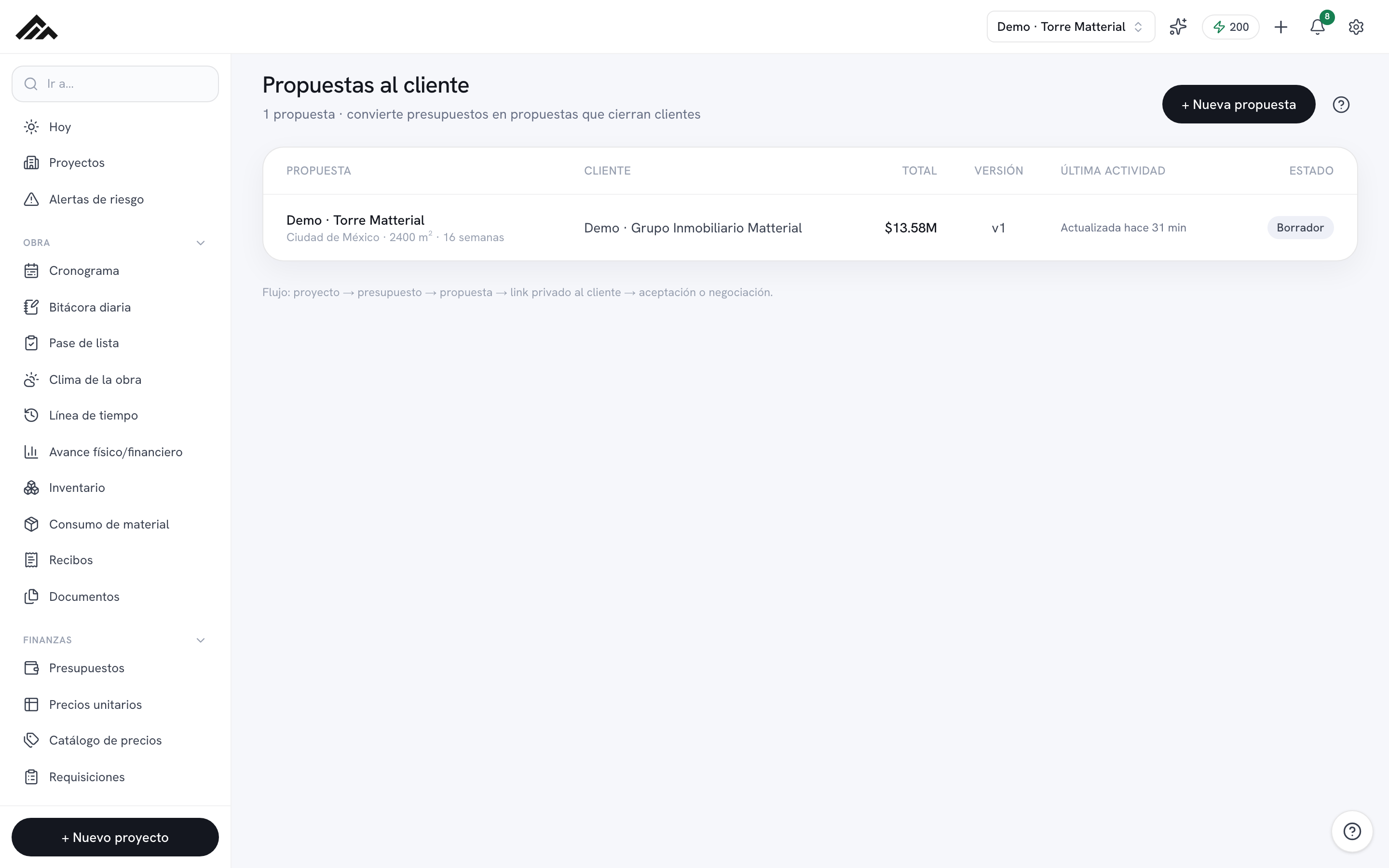
- Go to /propuestas and tap "+ New proposal": only the project name and the client are required to get started.
- Creating it opens the editor with tabs (Summary, Budget, Stages, Payments, Scope, Share); the scope, terms, and validity come straight from your Brand Kit, and the currency is your company's (or the project's, if you generate it from a budget).
- In Budget you add the line items, and with the eye icon you decide which ones the client sees and which stay hidden.
- On the Share tab, "Send to client" activates it: while it is a draft the client can view it but not accept it. Then you copy the private link, send it over WhatsApp, or use "Send by email": your client gets it with the amount and validity, and if they reply, the reply comes to you.
- The client opens the link, comments or accepts online, and you see it show up with the "New" tag in the list. When they accept, your client gets a confirmation email with what they accepted, the amount, and the date. It works without AI, so it doesn't spend any credits.
- 1
Open Proposals and create a new one
From the menu, go to Proposals (/propuestas). You'll see the list of your proposals with their total and status. In the top right, tap "+ New proposal": a window opens with the bare minimum to get started.
- 2
Capture the essentials of the project
Choose the Type of work (full build, remodel, etc.), enter the Project name and the Client —both required— and, if you'd like, the client's email, location, duration (in weeks or days), and area in m². The "Create and edit" button becomes available as soon as you fill in the project and the client; when you tap it, the proposal is saved to your account and you land in the editor.
- 3
Build the budget
On the Budget tab, use "Add line item": enter the name, a description for the client, and the amount. With the eye checkbox you mark which line items are visible and which stay hidden. Up top you choose how it's presented (summary, detailed, or executive) and whether unit prices are shown. The total is calculated for you.
- 4
Fine-tune payments, stages, and scope
In Payments, apply a quick scheme (deposit/final payment) or set your own milestones; the system warns you if they don't add up to 100%. In Stages you describe the work plan, and in Scope you review what's included, what's excluded, and the terms that come from your Brand Kit. In Summary you adjust the validity and the executive summary. It saves on its own as you type (you can also press "Save changes").
- 5
Review it the way your client will see it
Before you send it, use "View as client ↗" (or, inside Share, "Open client view") to see the proposal exactly as they'll receive it. From there you can also "Export PDF" if you'd rather attach it.
- 6
Send the private link to your client
Go to the Share tab. If it is still a draft, press "Send to client": until then the client can view it but not accept it. Under "Client's private link" you have buttons to Copy the link, send it over WhatsApp, or open it. Right there you turn on whether the client can comment and accept online. That private link is the delivery: when they open it, their comments and their acceptance reach you flagged as "New" in the proposals list.
- 7
Or email it from Matterial
On the same Share tab, press "Send by email". A sheet opens with the client's email already filled in (the one on the proposal; you can change it), an optional message, and a preview of the subject and sender. The email goes out in your company's name ("Your company via Matterial"), in your company's language, with the title, total amount, validity, and a button to the private link; if your client replies, the reply comes to you. If the proposal is at zero, has no visible line items, or has expired, it warns you before sending. Once sent, it's logged in the activity and, if it was a draft, it moves to Sent.
Frequently asked questions
Can I email the proposal to my client from Matterial?
Yes. On the Share tab, "Send by email" sends your client an email with the private link, the amount, and the validity, in your company's name. If they reply, the reply goes to your email. You can also copy the link or send it over WhatsApp. When the client opens it for the first time you get a heads-up, and their comments or their acceptance show up with the "New" tag in /propuestas.
Does the client get anything when they accept the proposal?
Yes: if the proposal has the client's email, when they accept it online they receive a confirmation with the title, your company, the accepted amount, the date, and who accepted it, plus a button back to the proposal, where they can download it as a PDF. If they reply to that email, it comes to you. It's sent only once per acceptance.
Can I hide certain line items or the internal detail from the client?
Yes. On the Budget tab every line item has the eye checkbox: turn it off and the client won't see that line. You also choose how everything is presented (summary, detailed, or executive) and whether or not unit prices are shown.
Where do the scope, terms, and validity come from?
From your Brand Kit: the proposal starts with your company's standard included/excluded items, commercial terms, currency, validity, and deposit percentage. You can edit them in each proposal without changing your general settings, and building a proposal doesn't use any AI credits.