

Manage a bid
Winning a bid starts long before you hand in the proposal: you have to read the fine print, round up paperwork, hit every deadline, and never lose track of a single requirement. In Matterial, Bids gives you a board to move each opportunity from prospect to won, with AI that reads the bid documents for you and builds the checklist. That way you prepare your proposals without the last-minute scramble and, when you win, you turn the bid into a project without re-entering a thing.
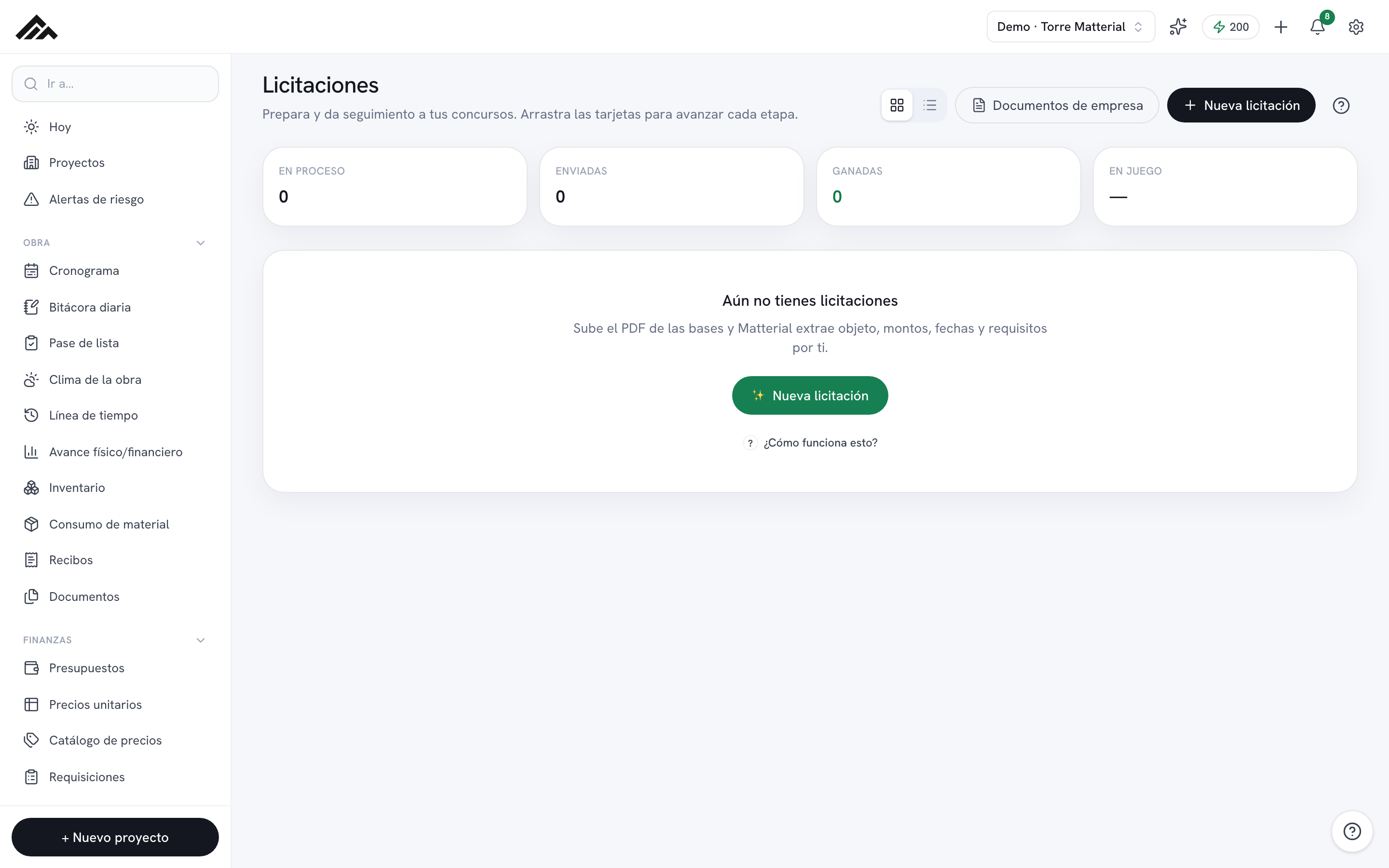
- All your bids live on one board (card or table view) with six stages: Prospect, Analyzing, Preparing, Submitted, Won, and Lost.
- Upload the PDF of the bid documents and AI pulls out the scope, amounts, dates, and requirements, saves the file, and builds the checklist (~5 credits) — or enter it by hand without spending any credits.
- Each bid has its own detail page: general info, a line-item catalog, a requirements checklist with attached documents, pre-filled letters, and key dates.
- Reuse incorporation papers, your RFC, and other documents from Company documents, with a heads-up when something is about to expire.
- Mark a bid Won and it becomes a project, carrying over the name, location, amount, currency, and the template for that type of work.
- 1
Create the bid from the board
In Bids, tap "New bid." The dialog asks how you want to start: choose "Upload bid documents (PDF)" to have AI read the file and pull out the scope, agency, amounts, dates, and requirements (~5 credits), or "Enter manually" if you'd rather type in the details yourself without using AI.
- 2
Review it and create the detail page
With AI, Matterial pre-fills the form and shows its read — Bid, Bid with caution, or Pass — along with the risks and opportunities it spotted; review it and tap "Create with everything" so it also saves the PDF and seeds the checklist. By hand, you fill in the scope, agency, reference number, type of work, location, amount, currency, and due date.
- 3
Fill in the details and the line-item catalog
Inside the detail page, the General info fields save on their own as you move off each one. If you have the itemized list (Annex C), import it under "Line-item catalog": it takes the Excel file as-is, or a PDF/photo and pasted text that AI organizes into line items and quantities.
- 4
Build the checklist and attach documents
Under Requirements, use "Use the standard checklist" (articles of incorporation, RFC, 32-D tax-compliance opinion, technical and financial proposal, surety bond…) or add your own. To each requirement you attach a file with "Upload" or "Reuse from library." You can also generate the standard Letters and declarations, already pre-filled to print to PDF and sign.
- 5
Track the dates and move through the stages
Enter the Key dates (Site visit, Clarification meeting, Proposal due, and Award); the upcoming ones show up in the board's Agenda, and the Health ring tells you what's still missing. Move each bid forward by dragging its card on the Kanban, with the "Move to" menu, or from the Status card on its detail page.
- 6
When you win, turn it into a project
When you move the bid to "Won" (or tap "Mark as won and create project"), Matterial creates the project carrying over the name, location, amount, currency, and the template for that type of work — no re-entering anything. If it didn't pan out, move it to "Lost" to close it out.
Frequently asked questions
Do I need AI credits to manage a bid?
No. Reading the bid documents and the summary use about 5 credits from your company's shared monthly pool, but you can enter everything by hand, use the standard checklist, generate the letters, and upload documents without spending any credits. Even with AI turned off, the module works in full.
Can the documents I upload be used for other bids?
Yes. Under "Company documents" you store incorporation papers, your RFC, the 32-D opinion, and other paperwork along with each expiration date, and you reuse them in any bid with "Reuse from library." Matterial gives you a heads-up when a document is about to expire.
What language does everything show up in?
The interface comes up in your language (Spanish, English, or Portuguese, based on your preferences). The legal letters and declarations stay in Spanish on purpose, because they're the format required for bid filings in Mexico.