

Keep your site log by voice
After a long day on site, the last thing you want is to sit down and fill out a form. With voice logging, you just tap the mic and describe how the day went —the weather, how many people worked, what got done, what materials showed up, and any issues—; the AI transcribes what you said and drops it into each field. All you do is review it, add a couple of photos, and save. It's the fastest way to get the daily report on record without typing a thing.
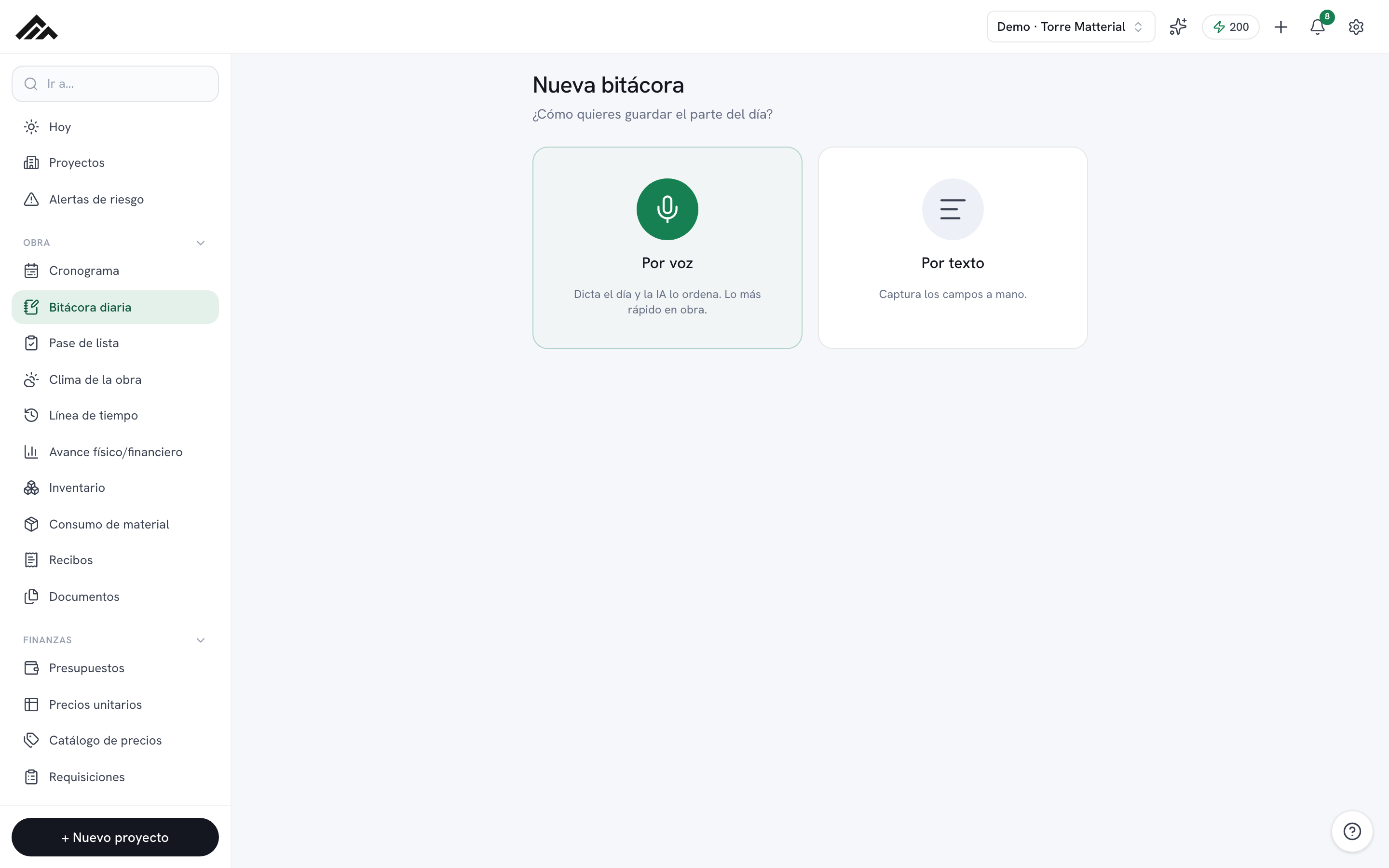
- You dictate the daily report and the AI sorts it straight into the log fields on its own: weather, crew, activities, materials received, incidents, and progress.
- You'll find it under Site Log → New entry → By voice. It needs internet, and your company has to have AI voice turned on.
- Voice draws from the monthly Matterial Credits pool your company shares: 2 credits per minute, with a 2-credit minimum and a 15-minute cap per note.
- You always review and fix things before saving; you can open the transcript to compare.
- Canceling with the ✕ costs nothing. With no internet or voice turned off, you capture by text and it uploads on its own once you're back online.
- 1
Open New entry and pick By voice
In the Site Log module, tap New entry. You'll see two cards: By voice (mic icon) and By text. Pick By voice. That card only shows up when there's internet and your company has AI voice turned on; otherwise, you go straight to text capture.
- 2
Tap the mic and dictate the day
A screen opens with a blue orb. Tap the mic and talk naturally: the weather, how many people worked, what activities got done, what materials arrived, and any issues. Up top, the timer runs ("Listening… 00:12"). You can talk for up to 15 minutes; when you hit the cap, the clip stops on its own.
- 3
Finish and let the AI sort it out
When you're done, tap the ■ button to stop. The screen shows "Transcribing and organizing…": first your audio gets transcribed, then the AI arranges what you said into each field. If you change your mind before finishing, tap the ✕ to cancel; canceling doesn't use any credits.
- 4
Review and fix the fields
You land on "Review entry" with everything pre-filled: Project, Date, Weather, Supervisor, Crew, Activities (one per line), Materials received, Incidents, and Reported progress (%). The AI nails it almost every time, but this is your official record: fix whatever needs fixing. Open "View transcript" if you want to compare it with what you actually said.
- 5
Add photos, videos, and extra notes
Further down, you can add Photos of the day, Videos of the day, and additional Voice notes with the + Add button. Those extra voice notes are saved as separate clips (they aren't transcribed and don't use credits), handy for leaving a bit of audio context.
- 6
Save the entry
Double-check that the project is the right one and tap Save entry. If you'd rather switch methods, use ← Change mode. With internet, it uploads right away; if you ran out of signal, it's saved on your device and uploads on its own once you reconnect. Offline, the screen stays put with a “Saved on this phone” notice: from there you start another entry or see what is pending.
Frequently asked questions
How many credits does dictating an entry use?
Voice is billed by the minute: 2 credits per minute, with a 2-credit minimum and a maximum of 15 minutes per note. It comes out of your company's shared monthly Matterial Credits pool (from 200 credits on Free up to 25,000 on Enterprise). If you cancel with the ✕ before finishing, nothing is charged.
I don't see the By voice option — why?
AI voice needs internet and has to be turned on in your company's AI preferences (plus the transcription service has to be set up). With no connection or voice turned off, the screen takes you straight to text capture; that entry still gets saved, and if you were offline, it uploads on its own once you reconnect.
A daily log I saved without signal says it could not sync. What do I do?
At the bottom left you will see the notice with two buttons. Retry uploads it again with its photos and audio; use it once you have signal or after your administrator gives you back access to that project. Discard deletes it from your phone along with its photos and audio, and asks you to confirm because it cannot be undone. Captures belong to whoever made them: if someone else signs in on the same phone, they are not uploaded with that person's account.
Do I have to speak in a certain order or use keywords?
Nope. Talk naturally, the way you'd tell a coworker. The AI takes care of splitting out weather, crew, activities, materials received, incidents, and progress. Then, in "Review entry," you can tweak any field before saving.
How large can a photo, video, or audio file be?
Each photo can be up to 30 MB; each video or audio file, up to 50 MB. If you pick a larger one, Matterial tells you right then —with its name, its size, and the limit— and adds the rest of what you selected. For a long video, record it at a lower quality or in several parts.