

Track physical and financial progress
Progress shows you at a glance two numbers that rarely line up: how much of the job is actually built (physical progress) and how much of your budget you've already spent (financial progress). The screen puts them side by side, line item by line item, and flags them the moment they drift too far apart — which is exactly when it pays to take a closer look. You don't capture anything here or spend AI credits: everything is calculated live from the data you already have in Budget, purchases, payroll, and progress billings.
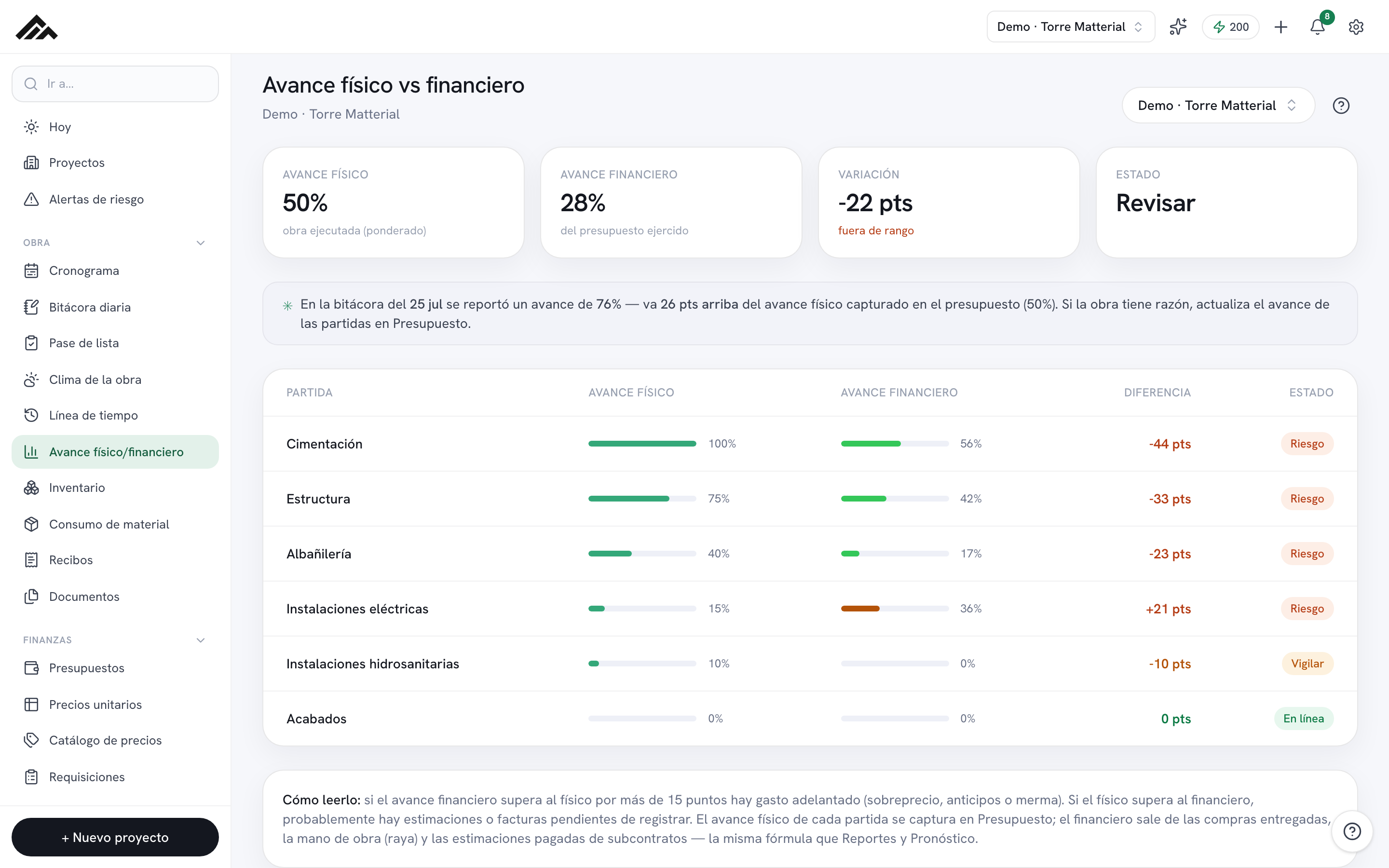
- Physical progress = work built, weighted by budget; financial progress = spent divided by planned. The gap between the two is the signal that matters.
- Four cards sum up the job at the top: physical, financial, variance (in points), and status (Under control, or Review once the variance tops 15 points).
- The table breaks down every line item with its own traffic light — On track, Watch, or At risk — depending on how far physical and financial have drifted apart.
- Each line item's physical progress is the highest of its measurements: what was captured in Budgets, the validated progress of its subcontract, or the progress of its schedule tasks (+ → Progress). This screen only reads, compares and tells you where each number comes from.
- If financial runs ahead of physical, spending is getting out in front; if physical is higher, you're probably missing progress billings or invoices you haven't logged yet. Same money math as Reports and Forecast.
- 1
Pick the project
Open Progress and, in the top right, use the project selector to point at the job you want to review. If you don't have budget line items yet, the screen hands you a button straight to Budget, because that's where the whole calculation comes from.
- 2
Read the four cards at the top
Up top you'll see Physical progress (work built, weighted by budget), Financial progress (share of the budget spent), Variance in points, and Status. When the variance climbs above 15 points, the status card flips to Review; below that, it stays Under control.
- 3
Scroll down to the line-item table
Each line item shows its physical and financial progress with a bar and a percentage, the Difference in points (+/-), and a status: On track, Watch (over 8 points), or At risk (over 15). That way you quickly spot which item is dragging the number off course instead of staring at the average alone.
- 4
Fix physical progress at its source
This screen is read-only. Each line item takes the highest of three measurements: the percentage captured in Budgets, the validated progress of its subcontracts (approved or paid estimates, or the latest validated progress report) and the progress of its schedule tasks, captured on site with + → Progress. Under the percentage you'll see “from its tasks” or “validated subcontract” when it doesn't come from Budgets. To lower it, correct the source that is high.
- 5
Cross-check against what the site reported
If the site engineer logged a progress percentage in the Log and it differs by 5 points or more from the calculated one, a notice appears with the date of that report and how many points it's above or below. If the site is right, update the task progress with + → Progress or the line items in Budgets.
- 6
Read the variance with the built-in guide
The 'How to read it' card at the bottom brings it home: financial well above physical usually means overpricing, advance payments, or material waste; physical above financial usually means progress billings or invoices you haven't logged yet. Use that to decide where to dig in.
Frequently asked questions
Where does financial progress come from?
From spending over planned. Spending adds delivered purchases, labor (payroll) and paid subcontractor estimates — the same formula Reports and Forecast use, so the money matches across the platform. Physical progress, instead, comes from what was captured in Budgets, the validated progress of subcontracts and the schedule tasks: for each line item the highest of the three counts.
Why doesn't physical progress match what the site engineer reports in the log?
Because they are different sources: the physical progress on this screen comes from Budgets, validated subcontracts and schedule tasks, while the site log is what was dictated on site. When they differ by 5 points or more, Progress flags it. If the site is doing well, update the task progress with + → Progress.
What if my company does not use Budgets?
Physical progress is calculated from the schedule tasks, weighted by each one's duration. Whatever you capture in the schedule or with + → Progress shows up here, on the project page, in Today, in alerts and in the daily close. A line item's tasks (linked to it or with its same name, like template tasks) give it its progress.
Does my subcontractors' progress count?
Yes, the validated one: the higher of approved or paid estimates over the contract amount and the latest progress report you validated. A pending report or an estimate under review doesn't move it. If a line item has several contracts, they are weighted by amount.
Does this screen use AI credits?
No. Physical and financial progress is calculated live from your budget and spending data; it doesn't use AI or draw down your company's monthly credit pool. Check it as often as you like at no cost.