

Customize your brand (Brand Kit)
The Brand Kit is where you decide how your company shows up in every proposal you send a client. Matterial takes care of the structure; the brand is all yours. Everything you set here (logo, colors, fonts, contact details, base text, and tone) applies on its own, so you never have to redo it proposal by proposal. You'll find it under Settings → Brand, and on the right there's a live preview that shows exactly what your client will see.
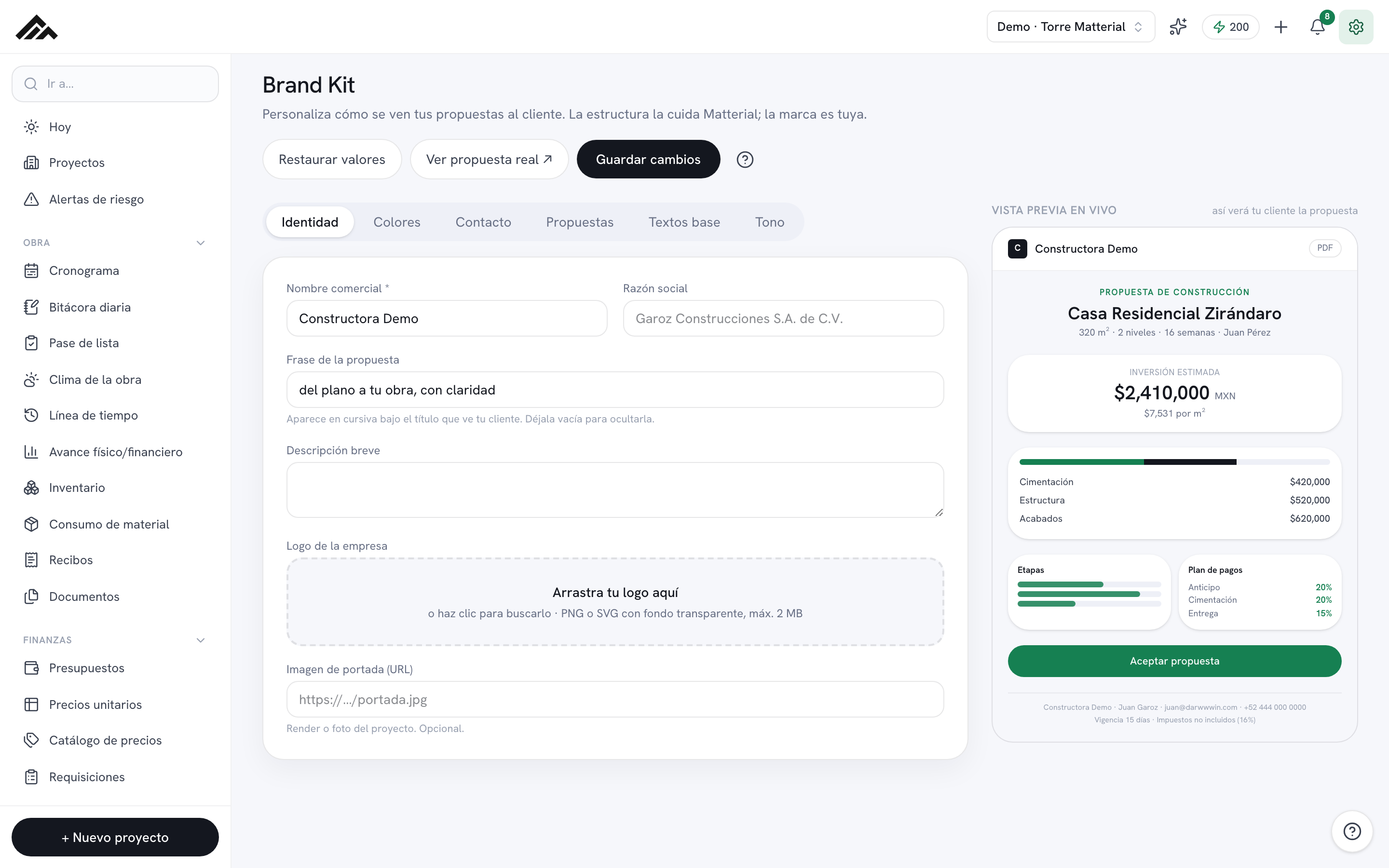
- It lives under Settings → Brand and is organized into 6 tabs: Identity, Colors, Contact, Proposals, Base text, and Tone.
- The right-hand column, Live preview, mirrors every change on the spot — that's how your client will see the proposal.
- Nothing takes effect until you hit Save changes; a notice confirms the brand is in your account or, if it could not be saved, tells you so you can try again.
- Tone only guides the AI when it writes the text for a proposal; the rest of the Brand Kit works without AI and without spending credits.
- Restore defaults clears the form (it asks you to confirm) and changes nothing saved until you press Save changes; the preview shows your style applied.
- 1
Open Settings → Brand
Go to Settings and pick Brand (path /configuracion/marca). Up top you'll see the Brand Kit title with the tab bar; on the right, the Live preview. Work your way through the tabs from left to right: every field you edit shows up in the preview right away.
- 2
Identity: name and logo
On the Identity tab, enter your Trade name (it's required — leave it blank and you won't be able to save) and, if it applies, your Legal name. The Proposal tagline shows up in italics under the title your client sees (leave it empty to hide it). For the logo, drag the image onto the dotted area or click to browse: it takes PNG, SVG, JPG, and WEBP up to 2 MB, optimizes it for you, and keeps transparency. You can also paste the URL of a Cover image.
- 3
Colors and fonts
Under Colors, set the Primary color (buttons, accents, and charts) and the Secondary color (dark backgrounds and contrast) in hex format — for example #168052; type an invalid value and a warning pops up at the top. Pick your Primary font (titles and metrics) and Secondary font (body text and tables), plus a visual Preset: Classic, Modern (the recommended one), or Premium.
- 4
Your proposal's contact info
On the Contact tab, fill in the details that appear at the end of the proposal: Contact person, Role, Business email, Phone, WhatsApp, Website, City, and Country. This is what your client will use to get back to you, so give it a careful look.
- 5
Proposals: what shows and the terms
Under Proposals, choose the budget's Level of detail (Executive, Summary, or Detailed; Executive hides unit prices). The toggles let you decide what shows: unit prices, quantities, cost per m², schedule, payment plan, scope, exclusions, and commercial terms. Below that, set the standard Validity (days), the Deposit (%), and the Tax mode (included, not included, or hidden). Currency isn’t set here: each proposal uses its project’s currency (or your company’s, under Settings → Currency & format).
- 6
Base text, tone, and Save
Under Base text, build your default lists of Included scope, Exclusions, and Commercial terms, plus Warranties and a Legal note. Under Tone, choose how the AI will write your summaries and scope: Professional, Friendly, Premium, or Technical (each option comes with an example). When you're done, hit Save changes: a notice confirms the brand is in your account and the preview shows the final result.
Frequently asked questions
Does setting up my brand use AI credits?
No. Adjusting your Brand Kit (logo, colors, contact, text, and the rest) doesn't use AI or spend credits. The tone you pick only comes into play when you generate the text for a proposal with AI; that draws from the monthly pool of credits your company shares. Everything else applies on its own.
What if my brand could not be saved?
If there is no connection or your session expired, Matterial tells you it was not saved to your account and your proposals keep the previous brand: proposals and PDFs read the brand from your account, not from your browser. Check your connection (or sign in again) and press Save changes once more.
What format should my logo be?
It takes PNG, SVG, JPG, and WEBP up to 2 MB. Matterial optimizes it automatically (resizing it to 512 px) and keeps PNG transparency — perfect for the header and the PDF. You can drag it onto the dotted area or click to browse, and replace or remove it whenever you like.