

Log a change order
In Change Orders, every change lives as its own document — with a line-by-line breakdown, its impact on cost and on days, and a clear cycle: from draft to sent, approved, and applied. Your client signs off through a link that accepts the terms, and once they approve, the change rolls straight into the budget and pushes out the schedule. It's a deterministic module: it works without AI and never spends credits.
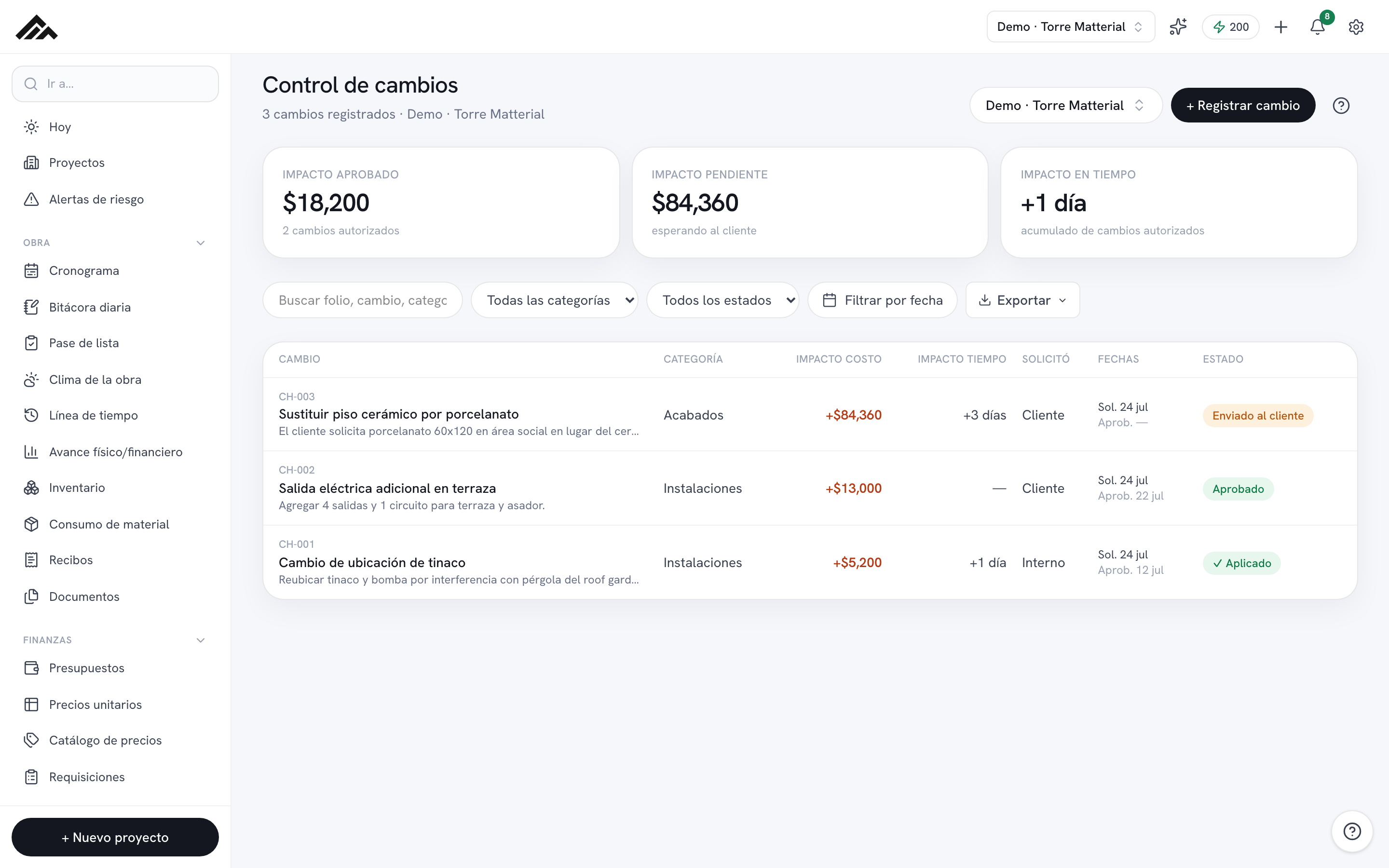
- Every change starts as a draft with an automatic number (CH-001, CH-002…) and its own line-by-line breakdown.
- The cost impact is calculated straight from the breakdown — you only enter how many days it adds to delivery.
- Sending it to the client generates an approval link with the addendum and its terms; you can also mark it approved or rejected by hand.
- Once approved, "Apply to project" shows you a preview and then adds the items to the budget, raises the client contract by the change amount and shifts the schedule.
- The whole module is deterministic: no AI, and it never draws from your company's credit pool.
- 1
Open Change Orders and pick the project
Head to /cambios. In the top right, select the active project and tap "+ Log change". The three cards — Approved impact, Pending impact, and Schedule impact — give you the state of the job at a glance.
- 2
Describe what's changing
In the modal, fill in "What's changing?" (required), pick the Category (Finishes, MEP, Structure…), who "Requested it" (client, internal, or site supervision), and the Impact in days. Under Details, write the explanation your client will see in the addendum.
- 3
Capture the breakdown
Under "Change breakdown", add each Line item with its Qty, Unit, and Unit price; the Amount adds up on its own. In "Target line", choose which budget line each row goes into, or leave it on "Approved changes (new)". Use "+ line" for more rows. You need at least one item.
- 4
Save the change
Tap "Save change". It's created as a draft with an automatic number (CH-001, CH-002…), and its record opens with the change's full cycle.
- 5
Send it to the client for approval
On the record, tap "Send to client →": it generates an approval link with the addendum and its terms for the client to accept. If they already said yes over the phone or WhatsApp, use "Mark approved" or "Mark rejected" and note who decided. "Print addendum" gives you the signable document as a PDF.
- 6
Apply it to the budget and schedule
Once it's Approved, tap "Apply to project…": you'll see the "Here's what this will touch" preview with the budget lines and the new delivery date. When you confirm, the items enter the budget tagged with the change number, the client contract goes up by the change amount (so receivables and margin include it) and the schedule shifts by those days.
Frequently asked questions
Does Change Orders use AI or spend credits?
No. Logging, sending, approving, and applying a change is fully deterministic, so it never draws from your company's monthly AI credit pool.
What happens to my budget and schedule when I apply a change?
Each item enters its target line (or "Approved changes") tagged with the change number, and if you entered impact days, the project's delivery date and any unfinished schedule tasks shift accordingly. Before anything is written, the "Here's what this will touch" preview shows you exactly what will move.
Can I delete a change?
Yes, as long as it's still a Draft: you'll see "Delete" on its record. Once you've sent it, or it's been approved or applied, it can no longer be deleted — that keeps the history and the addendum intact.