

Request, enter, and compare supplier quotes
Rounding up three quotes and figuring out which one wins almost always ends in a hand-built spreadsheet. In Supplier Quotes you have three ways to bring them in (send the supplier a link to fill in their prices, enter them by hand, or, if your account has AI reading, upload the PDF or photo) and Matterial lines them up against your project budget so you decide with clear numbers.
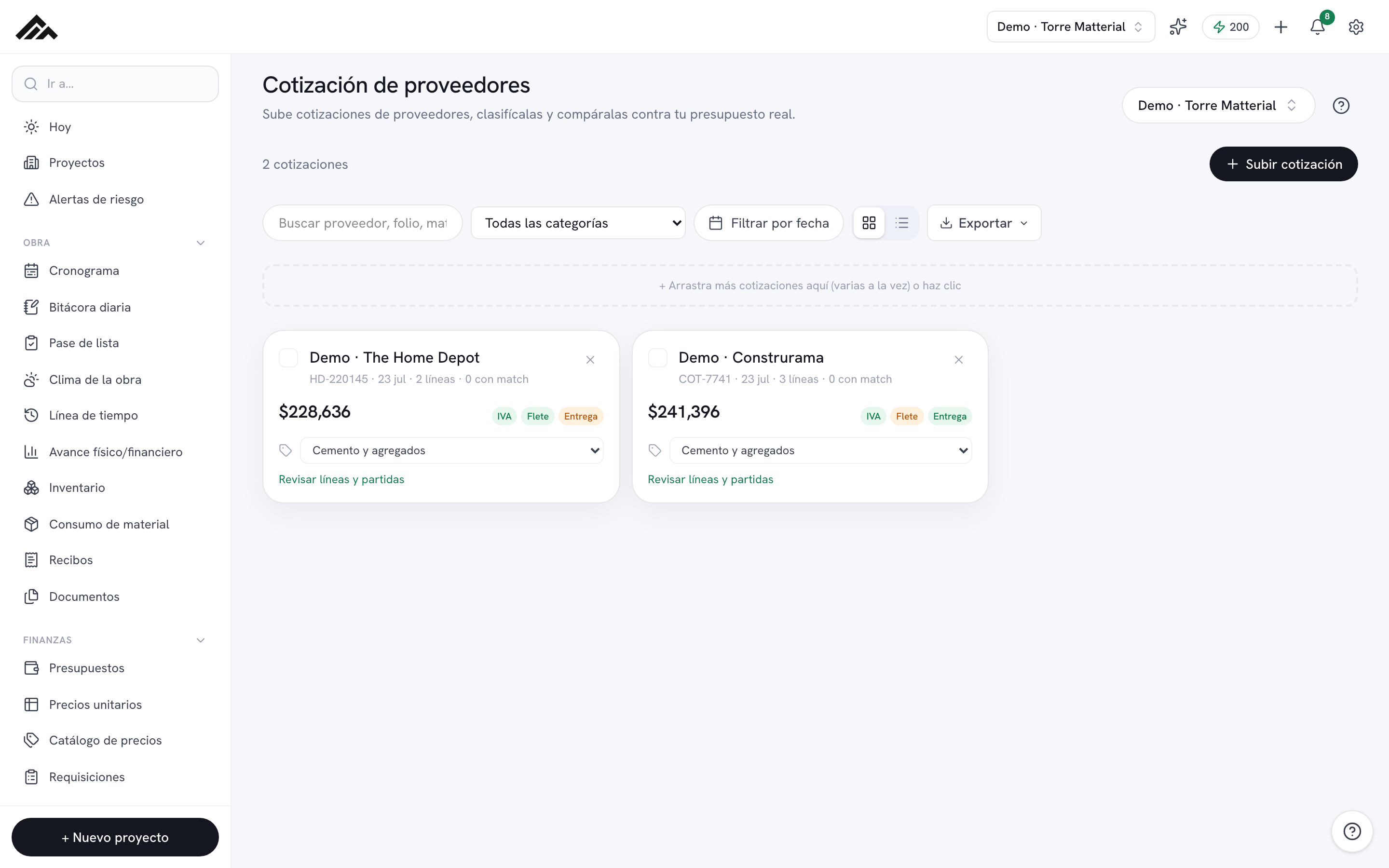
- Request by link: build the list of what you need (or bring it from pending requisitions) and send the link; the supplier prices each line without an account and the answer arrives on its own as a quote.
- Enter by hand: copy the lines with quantity, unit, and unit price from the quote you got over WhatsApp or on paper. No credits used.
- With AI reading (if your account has it) you upload a PDF, photo, or pasted text and the lines are entered for about 3 credits; you always review them before saving.
- The comparison only pits what is comparable: coverage is measured against everything quoted, price against what everyone quoted in the same unit, and the same material in another unit is bought only once.
- From the comparison you create the purchase order (or the contract) with its lines, the supplier linked and their credit days; the requisitions that came in the link become ordered, and your director approves from a link with no account.
- 1
Open Supplier Quotes and pick the project
Head into Supplier Quotes and choose the project in the top right. Everything is compared against that project's budget, so double-check it's the right one.
- 2
Ask the supplier by link
Tap Request by link. Type the lines (description, quantity, and unit) or use Bring in pending requisitions. If you pick a supplier, the link is in their name; without one, the same link works for several. Set a deadline and tap Create link: it shows up right there with Copy, WhatsApp, and Open. In the Requested by link list you see how many answers came in and can close it.
- 3
Or enter it by hand
Tap Enter by hand, pick the supplier (or add them right there), and copy their lines with quantity, unit, and unit price. Mark whether prices include taxes and, if charged separately, the freight. Matterial links each line to your budget with the same engine used everywhere else.
- 4
If your account has AI reading, upload it
With Read with AI you drag PDFs or photos (several at once) or paste the text; on Review what was extracted you fix anything before Save quote. Each read costs about 3 credits.
- 5
Compare product by product
Check 2 to 5 quotes and tap Compare. On Summary you see, by supplier, coverage (how much of what was quoted they include), VAT, freight, delivery, payment terms, and validity as they come, plus the risks. If not everyone quoted the same thing, price is judged on the common basket (what everyone quoted) and totals are not presented as savings. On By product, Matterial groups the same material across suppliers (only when the unit matches) and suggests a split purchase; if a material comes in two units (sand in m³ and in tons), they show up together, flagged, and one or none is preselected so you don't buy it twice.
- 6
Decide and create the order
Use Create purchase order (or Create orders on By product): the PO moves into Purchasing with its lines, the supplier linked, and the credit days from their quote or their profile, and the requisitions you brought into the link become ordered. For a package of work, use Award as contract. With Share for approval your director approves or rejects from a link, no account needed; under Comparisons sent to the director you see whether they decided and, if they approved, you create the approved orders from there.
Frequently asked questions
Do I need AI to use quotes?
No. Request by link and entering by hand always work and use no credits. AI reading is an optional shortcut for when you already have the PDF or photo.
Does the supplier need an account to answer the link?
No. They open the link, see only what you ask for (description, quantity, and unit), price each line, and send it. They don't see your budget or what others offered. Anything they don't carry they leave blank.
Why don't two prices for the same material compete?
Because they come in different units (for example, meter versus square meter, or bag versus ton). The comparison only lets prices in the same unit compete so it never recommends the wrong one. On By product you'll see them together, flagged as the same material in another unit: pick which one you buy.